

This web application is a multi-organization golf league management system designed to streamline event setup, player management, scoring, and reporting. Each organization operates independently while sharing a common platform and database structure.
The system supports admin-controlled event scheduling, player sign-ups, group assignments, live score entry, and automated statistical summaries, ensuring accurate and organized tournament management from setup through completion.
Each organization is isolated using a unique Client ID
Admin / Super Admin: Full control over setup, players, schedules, imported scorecards, and scoring. System allows a max of 5 Admins and 1 Admsuper user.
Selected by typing the first letter to filter results
Events are managed using a Schedule ID as the system’s source of truth
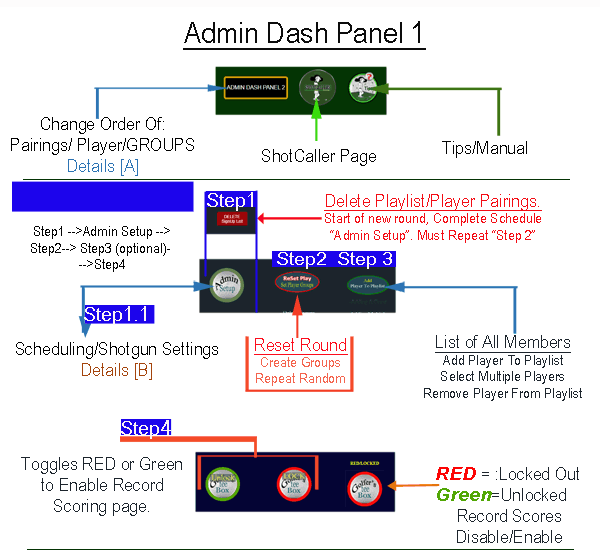
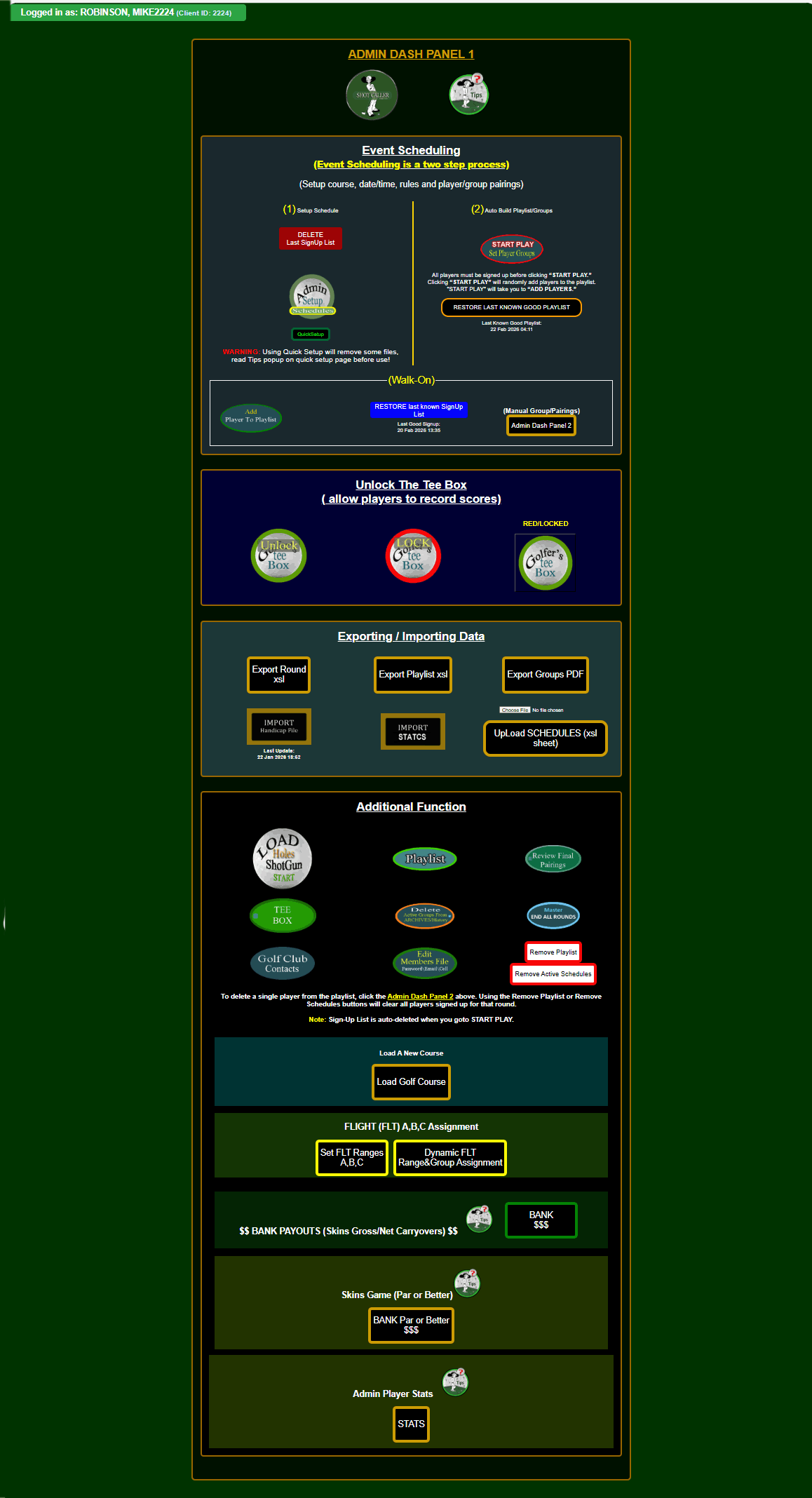
🔹 Step 1 : Clear Existing Playlist
Delete all previous player pairings and playlist to begin a fresh round. This step must be repeated for each new event.Set up the event details, including date, time, and shotgun start settings. Finalize the full schedule setup under Admin Setup before players are assigned.
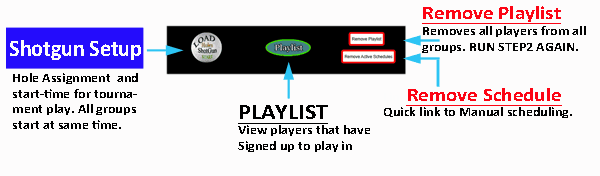
🔹 Step 1.1 [B]Details: Schedule & Shotgun Settings
Set up the event details, including date, time, and shotgun start settings. Finalize the full schedule setup under Admin Setup before players are assigned.
🔹 Step 2:
START PLAY/RESET ROUND ( Rebuild Groups/Pairings):
Clear Playlist Table from last round and player sign-up reloaded to Playlist.
Random Process started using reloaded playlist.
Groups/Pairings created and all players are paired into a group. Groups and Players can be changed (see step 3).
Redirect at completion of step 2, you will be redirected to ADD Player's page all players are paired into a group. Groups and Players can be changed (see step 3).
🔹Walk-on(optional):
Access the full list of members:
Add players to the playlist
Select multiple players at once
Remove players from the playlist as needed
🔹 Step 4:Unlock/Lock
Toggle buttons to unlock the scoring page to begin recording each player strokes for the scheduled 18 hole round. When the "RED/Lock" is green, the score keeper is allow to advance to recording process.
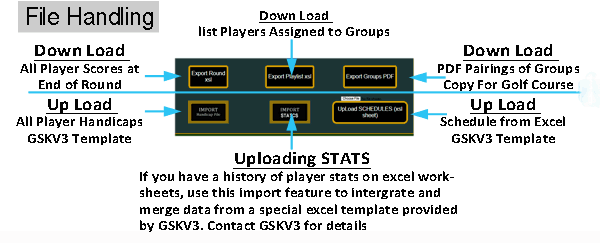
• Upload Player Handicaps** *Import handicaps using the GSKV3 Excel template.*
• Download Player Group Assignments ** *Get a list of players and their assigned groups.*
• Download PDF Pairings for Golf Course** *Generate a printable PDF of group pairings for course staff.*
• Upload Schedule from Excel** *Import a full event schedule using the GSKV3 format.*
• Upload Player Stats History** *Import historical player stats from a GSKV3 Excel template. Contact GSKV3 for the file.
This page allows administrators to manage the player sign-up list for the currently active event. The active event is determined by the most recent schedule created for your organization.
The event details shown at the top of the page (Course, Date, Green Fee, and Tee Time) come directly from the finalized schedule. If the displayed event is incorrect, return to Admin Scheduling and select or finalize the correct schedule.
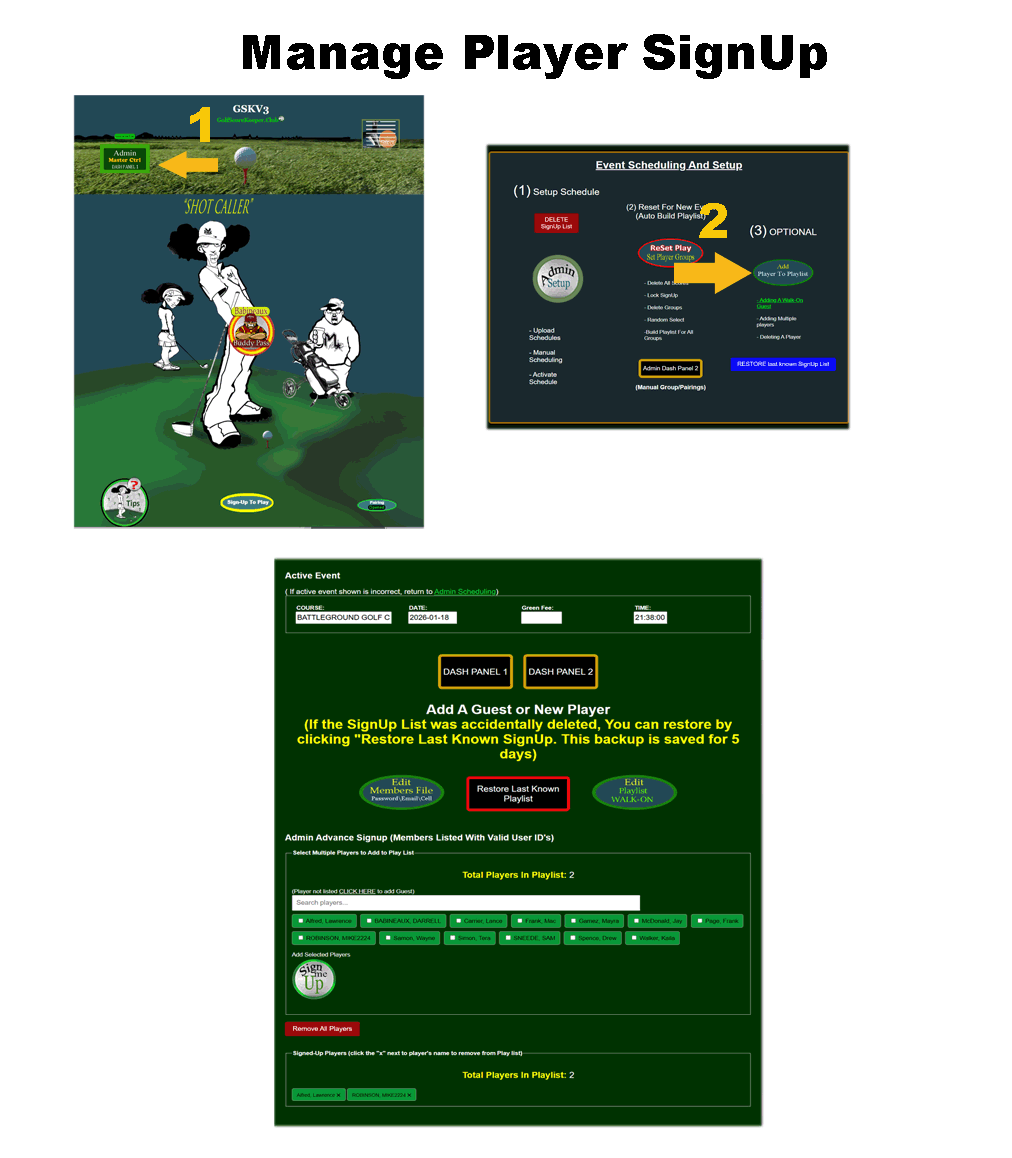
The Event Information section displays read-only details for the active event: Course name, event date, green fee, and start time. These values confirm that players are being added to the correct event.
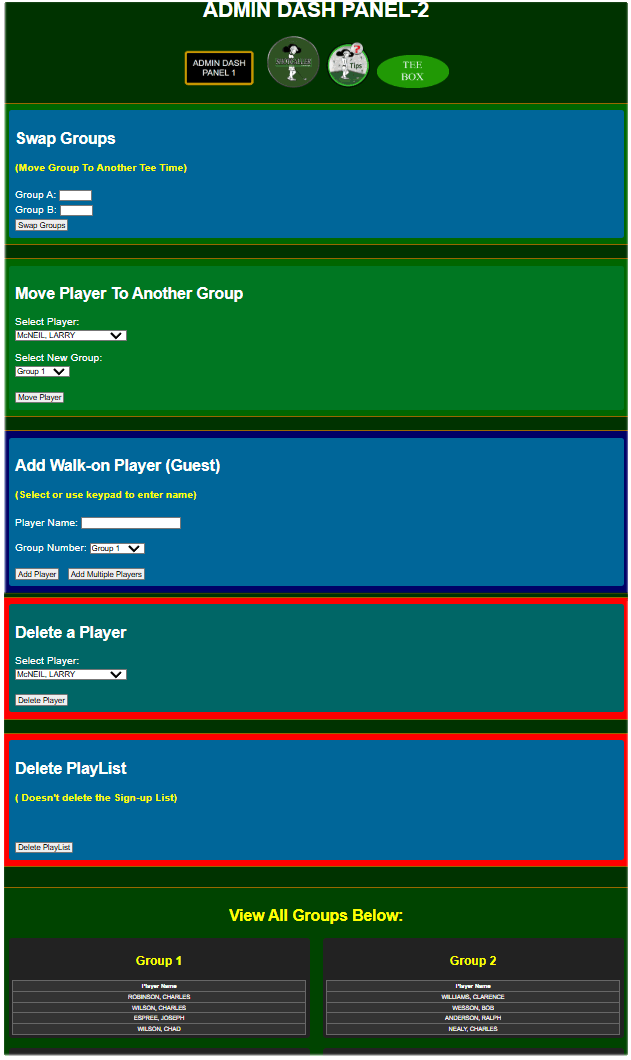
The dashboard buttons provide quick access to additional administrative tools. DASH PANEL 1 returns you to the main pairing and setup area. DASH PANEL 2 locks the signup list and prevents further changes once signup's are finalized.
If a player does not already exist in your organization, use the Edit Member button to add a new player or guest. Newly created players will automatically become available in the signup list.
If the signup list was accidentally deleted, the system maintains a temporary backup. Clicking Restore Last Known Playlist will overwrite the current signup list with the most recent backup (stored for up to five days). Use this feature with caution.
The player selection area displays all active players associated with your organization. You may select one or multiple players at the same time.
Use the search box to quickly filter players by typing part of their name. The list updates instantly as you type.
After selecting players, click Add Selected Players to add them to the current event’s playlist. Duplicate signup are automatically prevented.
Signed-up players appear in the lower section of the page. To remove a single player, click the name with the “✖” icon and confirm the action.
To completely clear the signup list for this event, use the Remove All Players button. A confirmation prompt will appear before deletion.
All changes on this page apply only to the currently active schedule. Player signup's are tracked by Client ID, Schedule ID, and Player ID to ensure data integrity across multiple organizations.
Once signup's are locked, no further additions or removals can be made unless the event is unlocked by an administrator.
This section is available only to users with Admin or Super Admin access. It allows you to review, approve, and manage player-submitted scorecards before they become final.
Scorecards listed in the Pending Approval section have been submitted by players and include a required witness name. These scorecards are considered provisional until reviewed and approved by an administrator.
Each pending scorecard displays the player name, date played, course, tee selection, front nine total, back nine total, and overall gross score. This information is provided to help verify accuracy before approval.
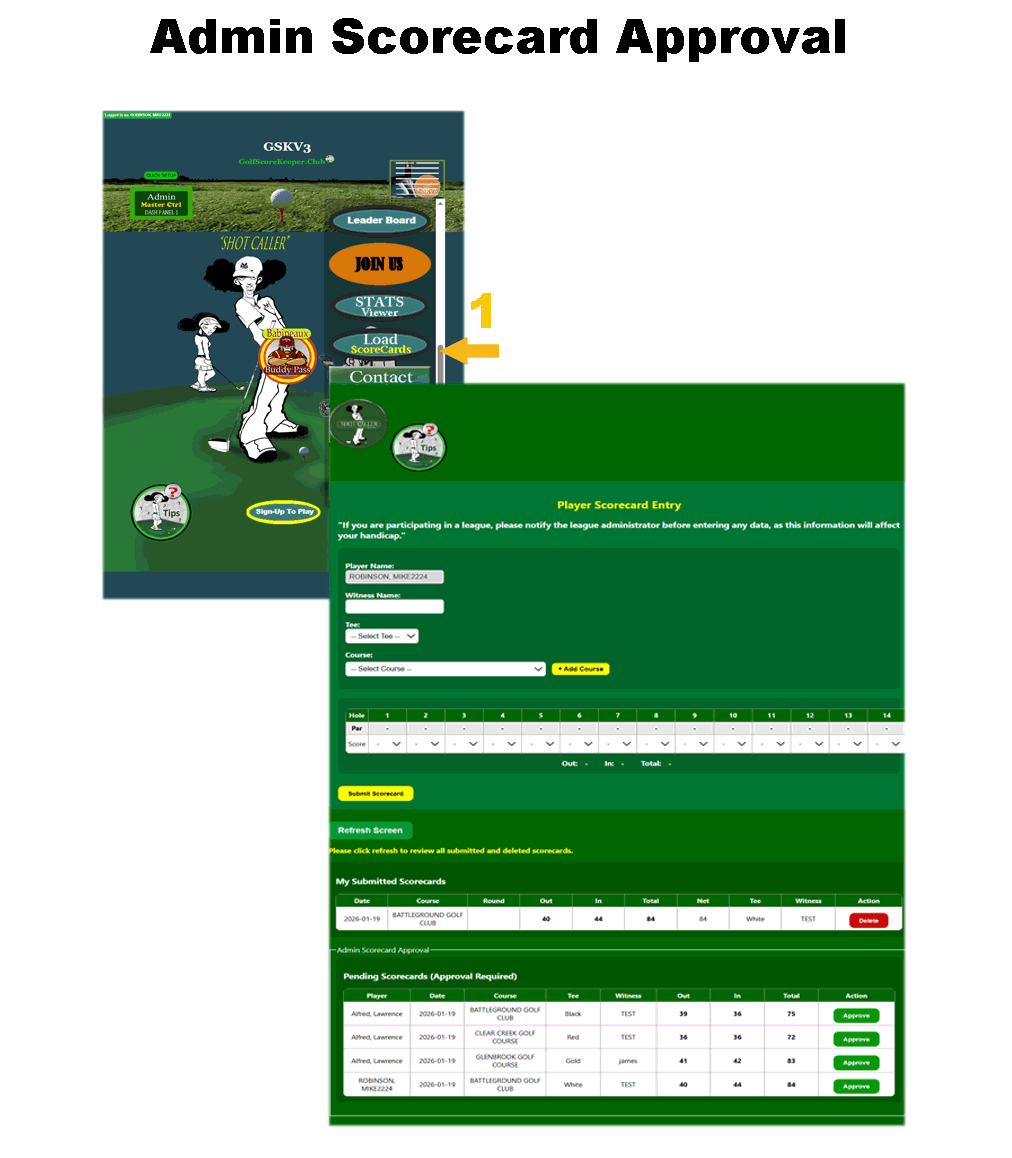
If a scorecard appears incorrect, administrators may edit the score using the dedicated edit page before approval. Editing is only permitted while the scorecard is pending and has not yet been approved.
Approving a scorecard finalizes the entry. Approval removes the witness restriction, locks the scorecard from player access, and prevents further edits or deletions by the player. Approved scorecards are considered official and should only be changed by authorized administrative action.
Administrators may remove a scorecard prior to approval if it was submitted in error. Removal is handled as a soft delete, preserving the record for audit purposes while preventing it from appearing in player or admin listings.
Only scorecards submitted through the official player scorecard entry page are eligible for approval. Scorecards entered through administrative tools or imports may follow separate validation rules.
If a scorecard requires correction after approval, contact a Super Admin to determine whether an administrative override is necessary.
All scorecard actions are logged and associated with the current client and player for auditing and reporting purposes.
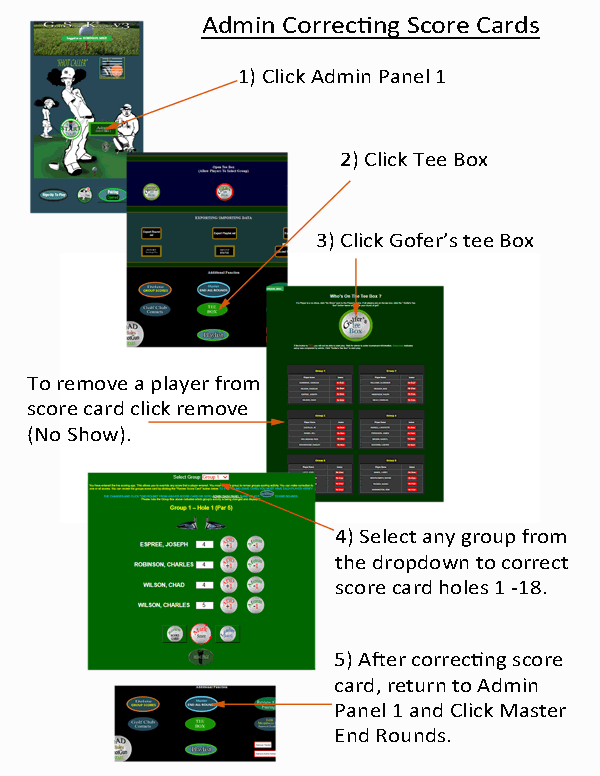
"The Admin's Record form is typically used after all scores have been entered and the 'End Round' button has been clicked. It allows reviewing and updating group scores hole-by-hole, using the current course, round, and schedule. Player validation, par values, and hole navigation are handled automatically."
Before recording scores: Admin can hind any player on score card by clicking red "Remove" button.
1. Record / Correcting Scores:
Select a group to correct scores. Each group includes multiple players assigned to this round.
2. Hole Number Display / Selector
On hole navigation buttons or labels:
Current hole being scored. Use Next/Previous to switch holes.
3. Stroke Input Field
Applied to each player's strokes input box:
Enter strokes taken by this player on the current hole. All scores default to zero. Click + to enter hole's "PAR" number. After "PAR" number is entered, use + or - to Increase/decrease strokes by 1.
4. Mark Score / Save Score Button : Save scores for all players in the selected group for the current hole.
5. After all players and groups have been updated, you must return to Admin Panel 1 and select "Master End Round". This will make all updated group scores available for excel download' stats for history, and post scores.
This page controls event scheduling, tee times, rules, and round setup for your golf organization. Only administrators can access these tools.
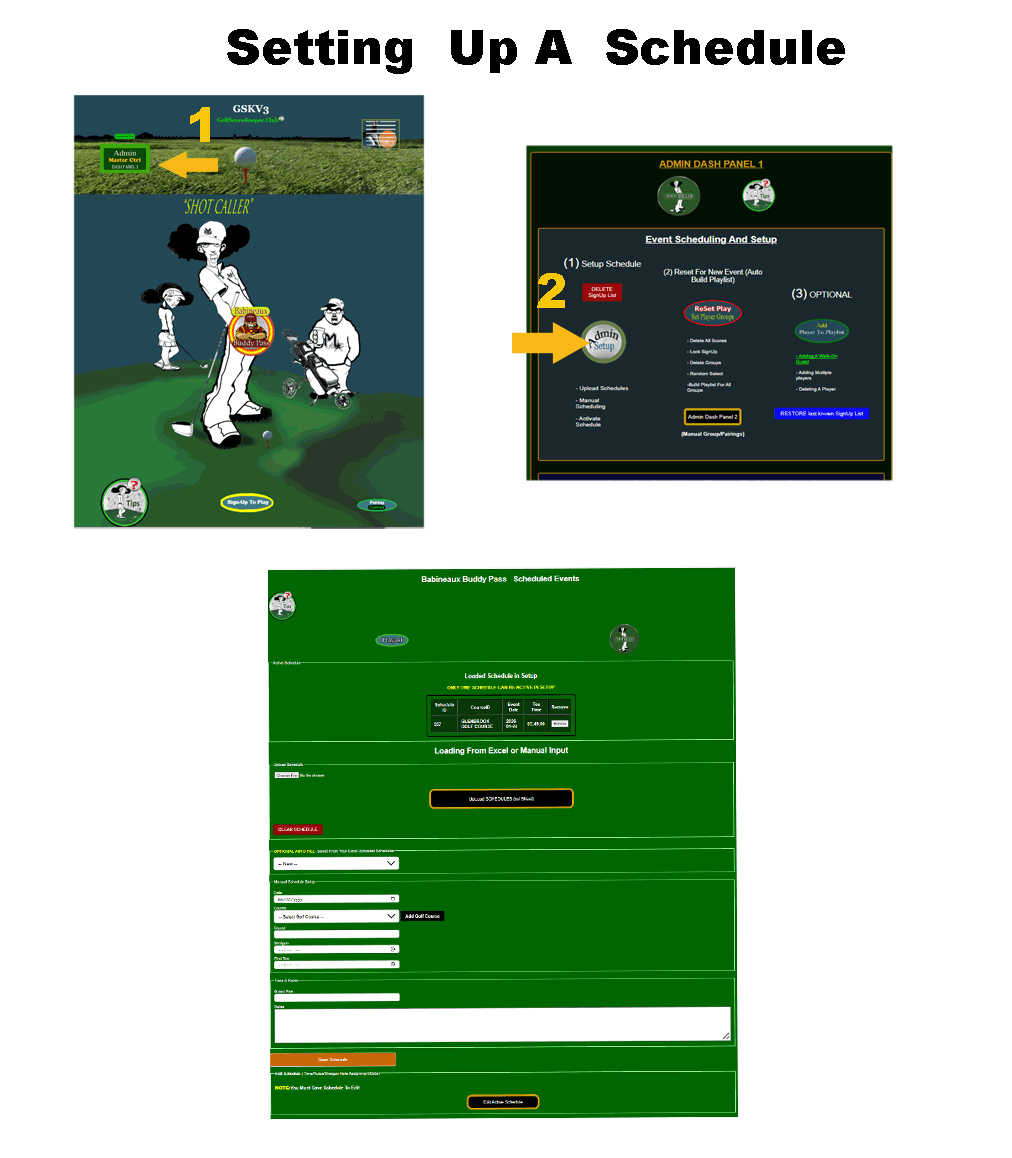
Only ONE schedule can be active in the Setup table at any time. Saving a new schedule deletes ALL scores from the previous round. Excel uploads are stored separately and can be reused with Optional Auto Fill.
Tip: Excel uploads are not automatically active — you must select and save one.
Shotgun time will override tee times when editing the active schedule.
You must save a schedule before it can be edited. Use the Edit Active Schedule button to adjust:
Tee times Shotgun hole assignments Rules and notes Event date
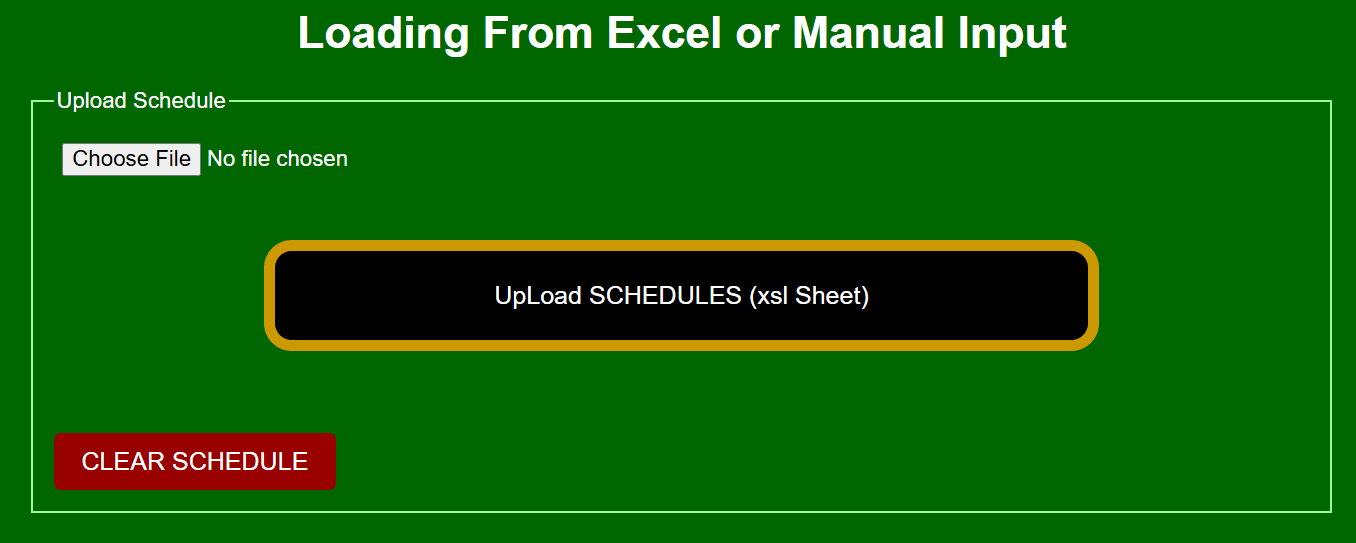
Remove (Single) deletes only the active Setup schedule. Clear Schedule deletes ALL uploaded Excel schedules. Clearing schedules cannot be undone.
Admin must switch to Player View to sign up or enter scores. You must log back in as Admin to return to this page. If linked player access is missing, player features may be unavailable.
Need help? Always upload schedules first when possible — it reduces errors and keeps events consistent.
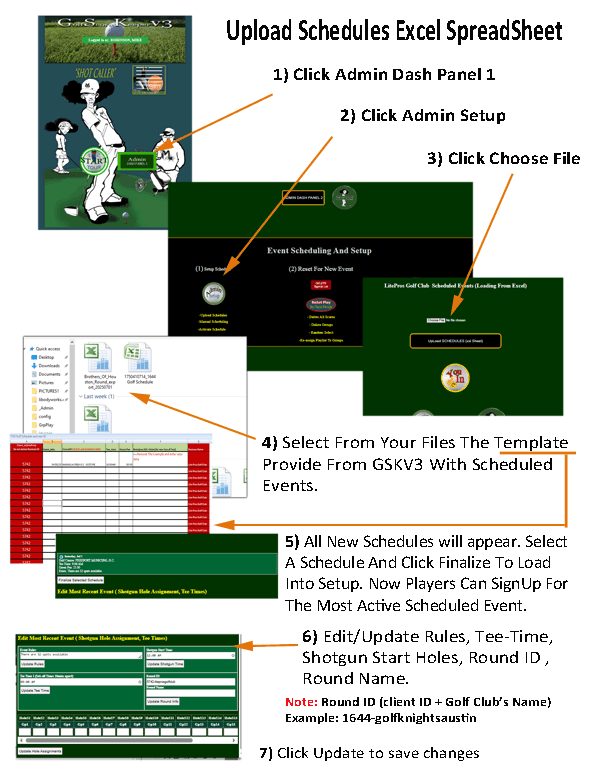
The GSKV3 gives you the ability to upload many prepared schedules from an excel worksheet.
GSKV3 should have provided a Golf Schedule template in your management package. Fill out a complete event schedule for 2-weeks or 52-weeks. Once you've uploaded your spread sheet, select any of the preloaded schedules and then click “Finalize” (See step-by-step figure). Do not make any modification to the red shaded areas in the templates. The red shaded areas are your organizational codes and if altered, your data will not be retrievable by normal operating processes. Contact us for additional help via your text message at our support number 8329382347(Include Player ID. Your Golf Organization and phone number on file must match.) .
Before any tournament start, a schedule must be activated (appears inside the active schedule box) in order create random groups. The schedules are Uploaded or manually entered (see section 5.1). Only the active highlighted schedule can be edited (rules, tee times, rounds information, option shotgun time and optional shotgun holes). This section is not visible until at least one schedule has been finalized. The update for the optional shotgun entries are posted on the pairings page, and can only be review after the pairings process has been completed.
This page allows Admin and Super Admin to manage scheduled golf events for your organization.
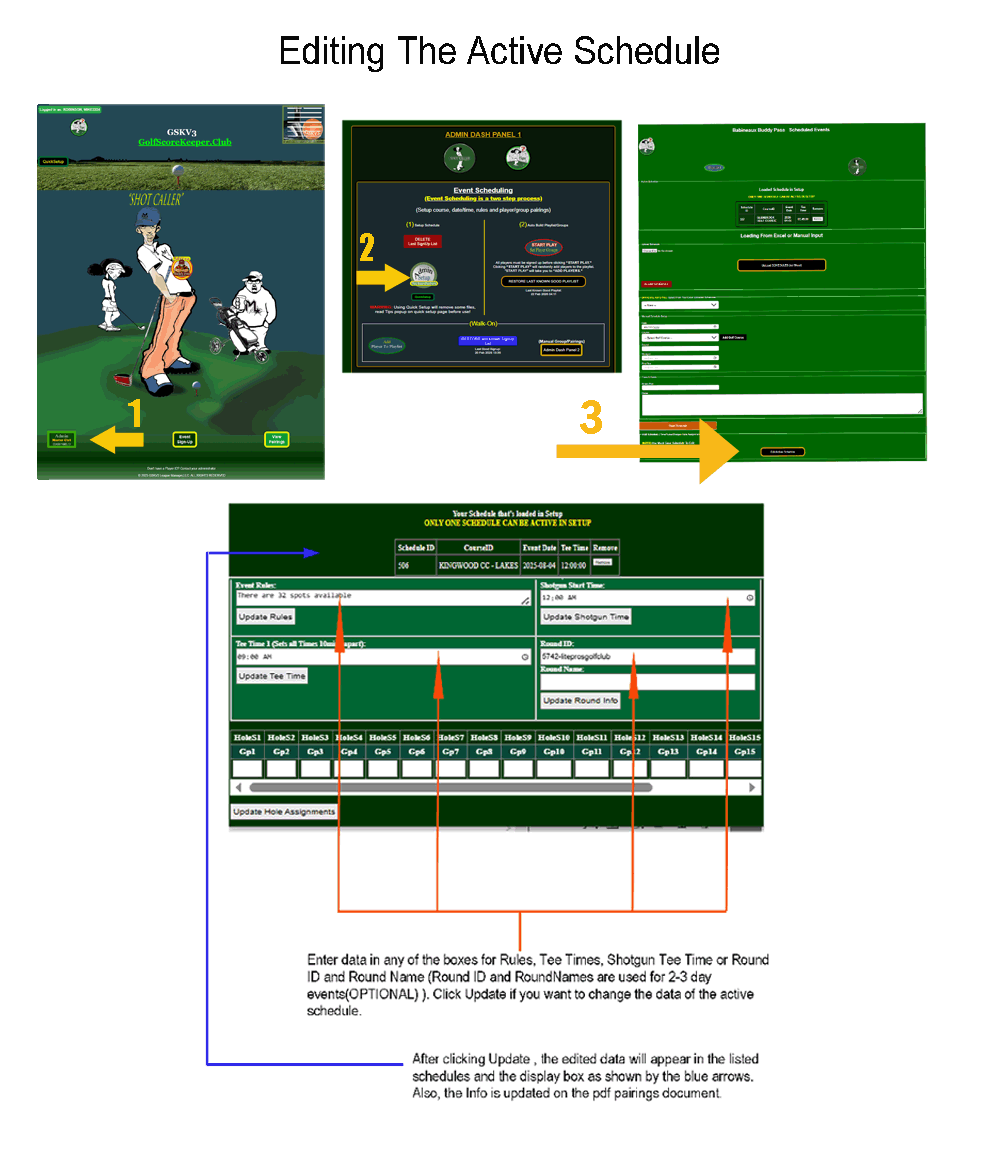
⚠️ Note: Entering a Shotgun Start will override individual tee times.
✔ Changes only affect the currently active schedule. ✔ Always confirm updates before leaving the page.
⚠️ Note: Entering a Shotgun Start will override individual tee times.
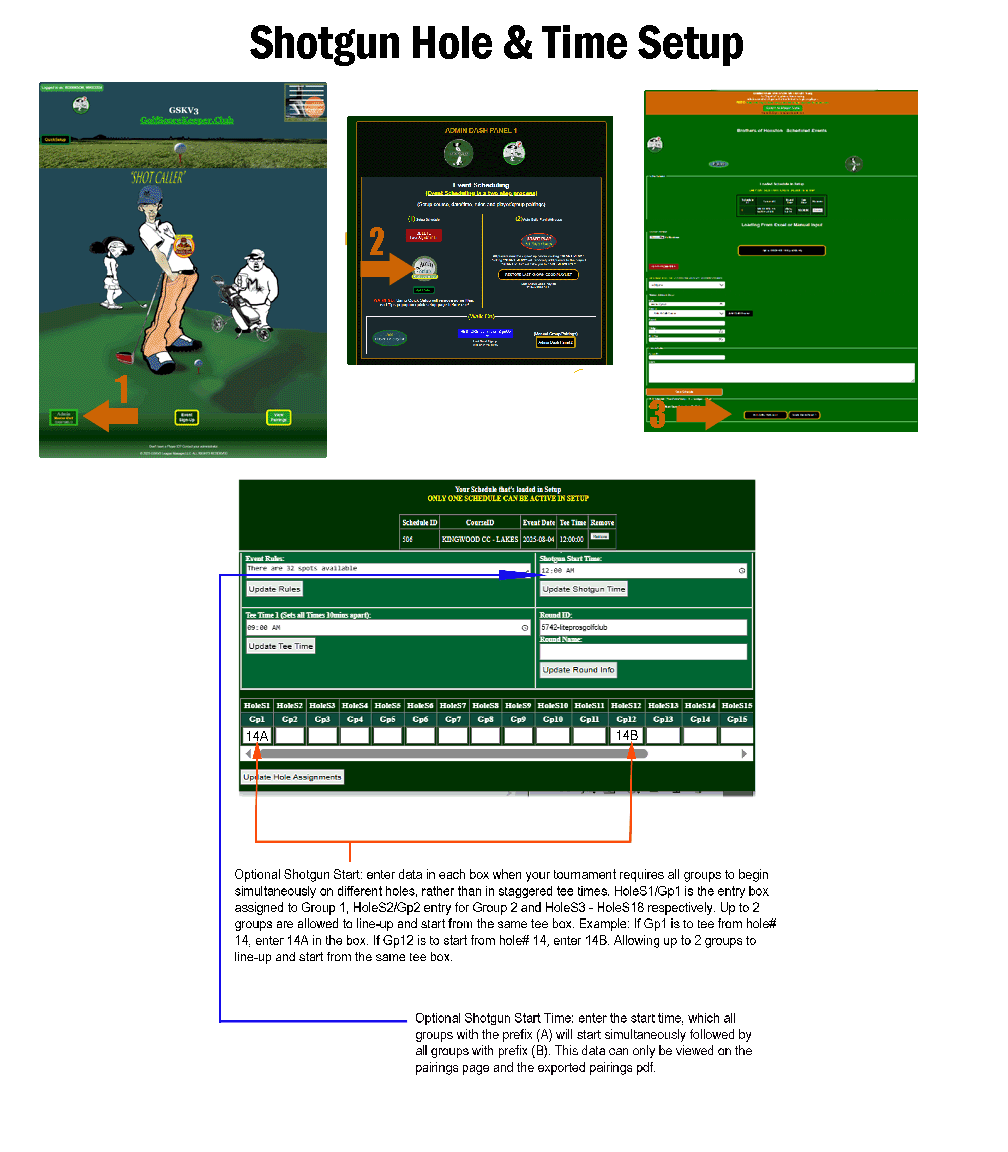
✔ Changes only affect the currently active schedule. ✔ Always confirm updates before leaving the page.
• Upload Player Handicaps** *Import handicaps using the GSKV3 Excel template.*
• Download Player Group Assignments ** *Get a list of players and their assigned groups.*
• Download PDF Pairings for Golf Course** *Generate a printable PDF of group pairings for course staff.*
• Upload Schedule from Excel** *Import a full event schedule using the GSKV3 format.*
• Upload Player Stats History** *Import historical player stats from a GSKV3 Excel template. Contact GSKV3 for the file.
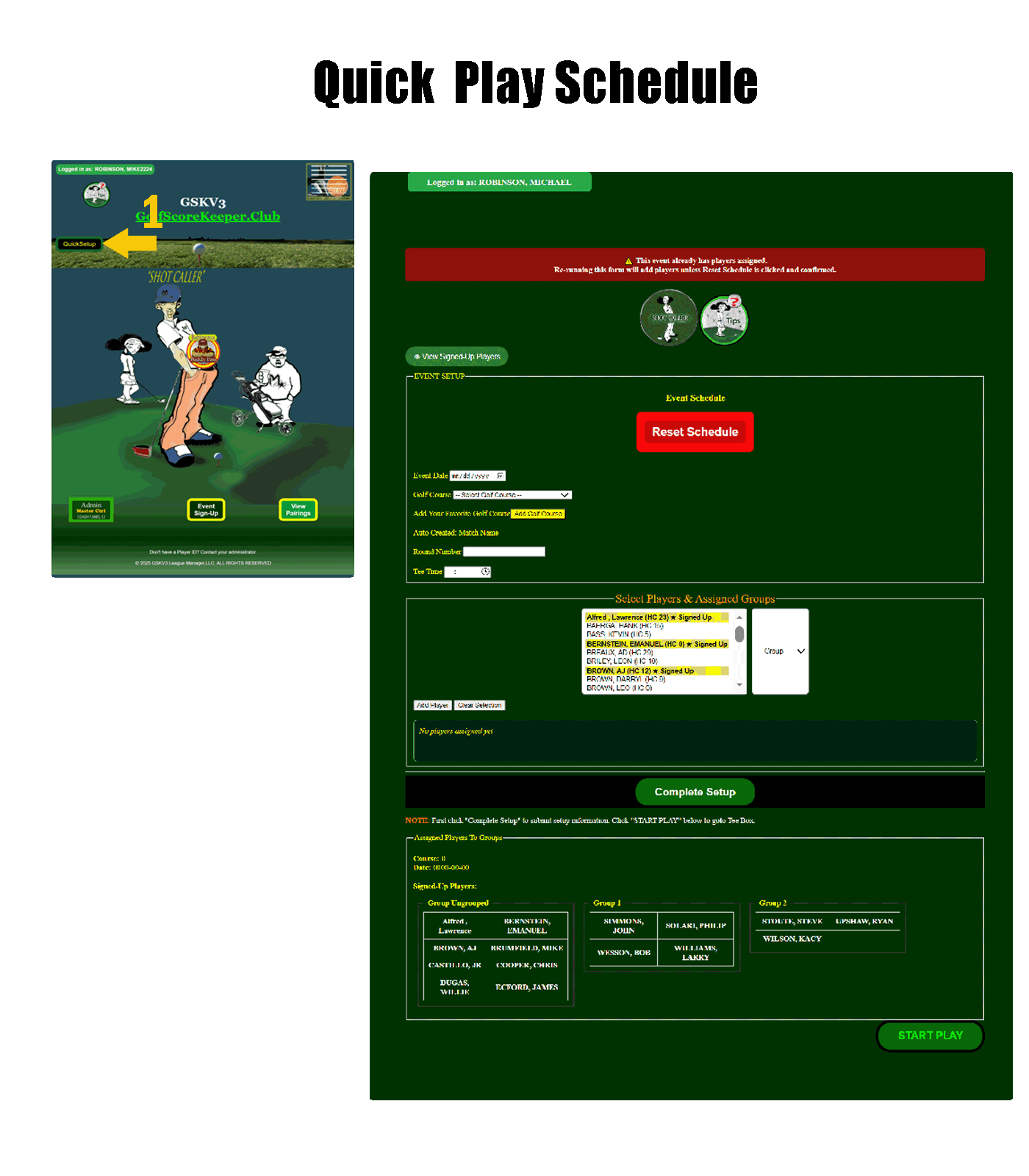
Example: LPGC01032026
This value is hidden and cannot be edited.
Click button "Complete Setup" before entering Tee Time. Clicking "Manage Tee Times" will allow you to set the official starting tee timee and interval (minutes).
All players signed up for the event are highlighted. Click on each player highlighted and assign to a group number by clicking "Add Player". You must Click "Clear Selection" to assign next group. Repeat process for each player/group assignment. After each player/group selection, click "Add Player" and then "Clear Selection" to avold duplicate entries. No players highlighted, click to select a player. For multiple selection, hold shift or ctrl keys and click each player for a group as noted above.
✔ Always verify course before assigning players
✔ Always click Complete Setup before leaving page
✔ Reset only when fully rebuilding
✔ Unlock groups before starting tournament
✔ Check unassigned players before play
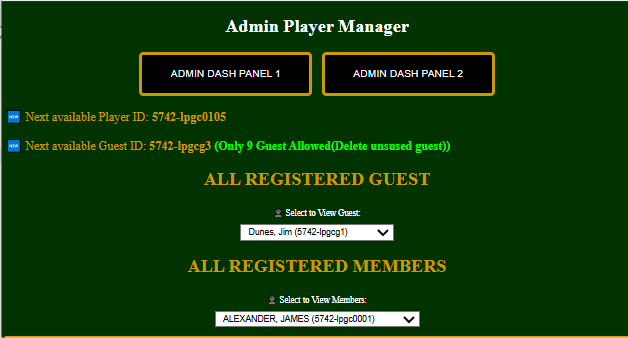
1. Player ID Generation: Finds the highest numeric player ID for this client and organization prefix, then suggests the next available ID for a new player.
2. Guest ID Generation
:
"Extracts the organization code from a sample player ID and suggests the next available guest ID (g1–g9). Ensures no duplicate guests are assigned."
3. Display Registered Guests
:
"Lists all registered guest players (g1–g9) for the current organization in a drop down for review or selection."
4. Display Registered Members : "Lists all registered members and member id's for the current organization in a drop down for review or selection." This feature tracks all issued id's for your organization preventing duplicate entries.
This panel allows authorized administrators to add new members, edit existing player information, activate or deactivate login access, and remove players from active participation while preserving historical data.
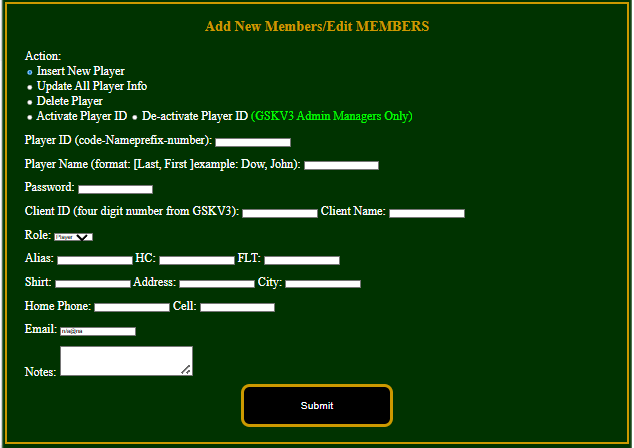
Format:
client-orgcode####
Example: 5742-lpgc1023
This field is NOT used for Activate, Deactivate, or Delete actions.
Required format:
Last, First
Example: Dow, John
Changing Client ID affects data isolation.
| Field | Description |
|---|---|
| Alias | Nickname or display name |
| HC | Handicap value |
| FLT | Flight or grouping assignment |
| Shirt | Shirt size (optional) |
| Address / City | Mailing information |
| Home Phone / Cell | Contact numbers |
| Default value may be used if unavailable |
All changes take effect immediately upon submission.

Displays and manages 'Join Us' form submissions for the logged-in client. Allows admin super-user review and deletion." Delete each request after review and processing.
config/submit_client.php.
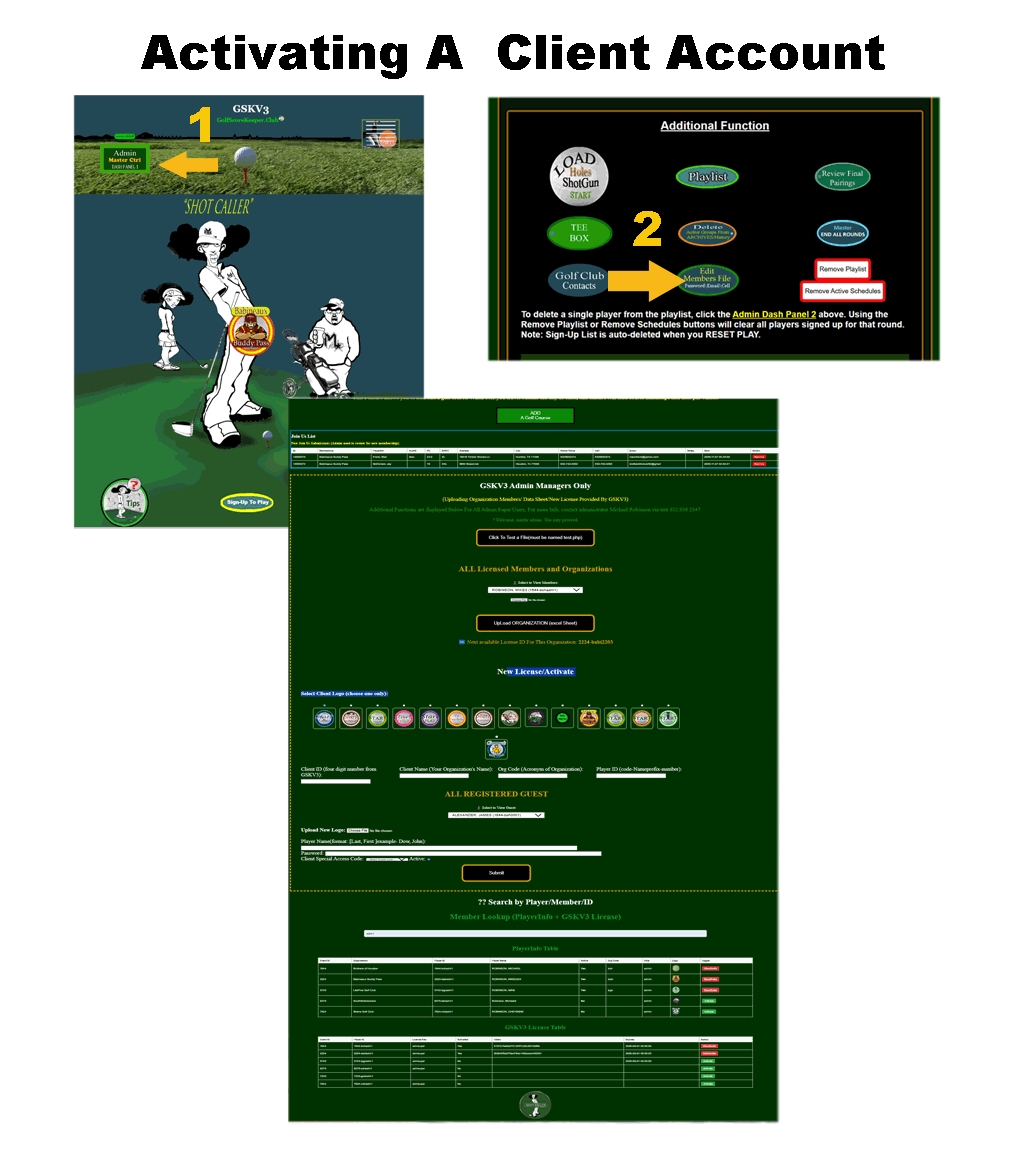
This administrative area is reserved exclusively for GSKV3 Master Administrators and Super Admin Users. It provides advanced system controls that directly affect organizations, licenses, members, and platform-wide configuration.
Upon entering this section, the system verifies your permission level. Users without master admin rights will see an access-denied warning and will be prevented from viewing or executing any administrative functions. This security measure ensures that only authorized personnel can modify critical system data.
Authorized master administrators are granted access to a full suite of management tools. These tools allow you to upload official organization Excel spreadsheets supplied by GSKV3, which may include licensed members, organizational details, and activation data. Uploaded files are validated and processed before being applied to the database.
The File Test function allows administrators to safely test upload or processing files in an isolated manner. This is intended to verify file structure, naming conventions, and data integrity prior to executing changes that affect live organizations or members.
The Licensed Members and Organizations viewer displays all registered clients and players across the system. Administrators can select an organization or member from the drop down lists to review identifying information, license status, and association details.
To maintain consistent licensing, the system automatically determines the next available License ID for the selected organization. This prevents duplicate IDs and enforces GSKV3 naming standards when adding new members.
Branding and identity management tools allow administrators to assign or change an organization’s logo. Logos may be selected from existing approved images or uploaded as new files. Selected logos are displayed throughout the application wherever organization identity is shown.
The New License / Activate section is used to create new licensed users, assign roles such as player, admin, or super admin, set initial passwords, and control active or inactive status. These settings directly determine a user’s access level and visibility within the system.

Guest and member lookup tools provide visibility into all registered users, including guests. Administrators can search, review, and verify player IDs, roles, activation status, and organizational affiliation to assist with support, audits, or troubleshooting.
Activation and deactivation controls allow master administrators to immediately enable or disable access for any user. Changes take effect system-wide and should be used carefully to avoid disrupting active organizations or events.
This section is intended for experienced administrators only. Changes made here may impact multiple organizations and users simultaneously. If you are unsure about an action, do not proceed without guidance from the system administrator.
For assistance, licensing questions, or permission changes, contact the primary system administrator listed on this page.
The Auto Bank Builder eliminates manual calculations and setup for golf event finances. With one click, it automatically builds or updates the Bank record for the current event, ensuring every active player’s entry fee is accurately allocated across all pots, fees, and pay outs.
This tool ensures:
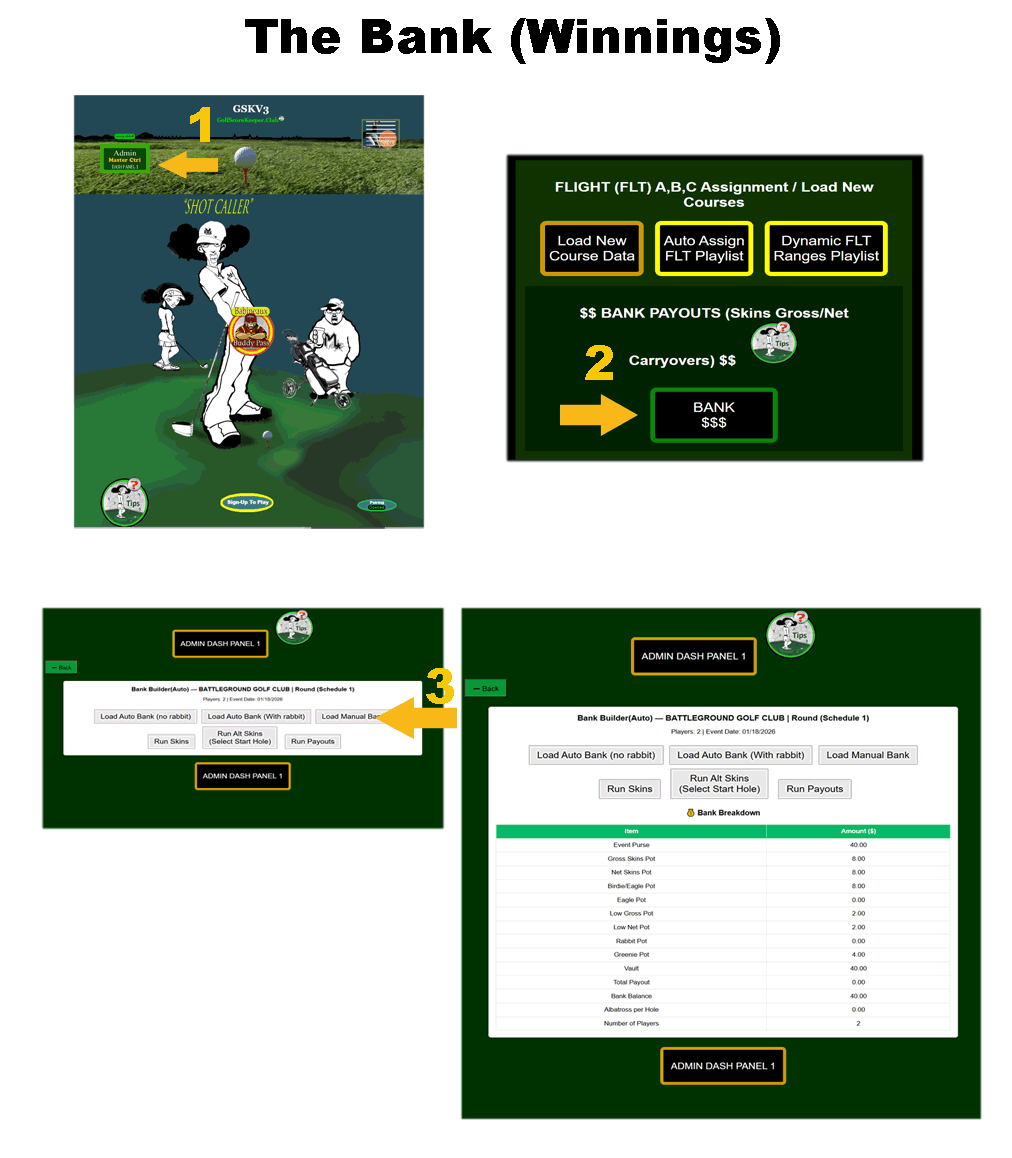
The Auto Bank Builder counts active players from the Playlist table for the current schedule and applies a standard $20 per-player entry fee.
Event Purse = Number of Active Players × $20
| Pot Type | Amount per Player ($) |
|---|---|
| Gross Skins Pot | 4 |
| Net Skins Pot | 4 |
| Low Gross Pot | 1 |
| Low Net Pot | 1 |
| Greenie Pot | 2 |
| Birdie Pot | 4 |
| Eagle Pot | 0 |
| Rabbit Pot | 0 (Optional) |
| Player Fee | 4 |
| Total per Player | 20 |
Skins and pay outs require the Bank to be loaded first.
| Players | 20 |
| Entry Fee per Player | $20 |
| Total Event Purse | $400 |
| Player Fees (20 × $4) | −$80 |
| Net Event Purse | $320 |
| Vault from Last Event | $120 |
| Bank Balance After Load | $520 |
This section contains Excel worksheets prepared specifically for your organization. These files are provided by GSKV3 and are available for download at any time.
These files are support worksheets that help your organization with offline event scheduling, member uploads, and managing organizational statistics.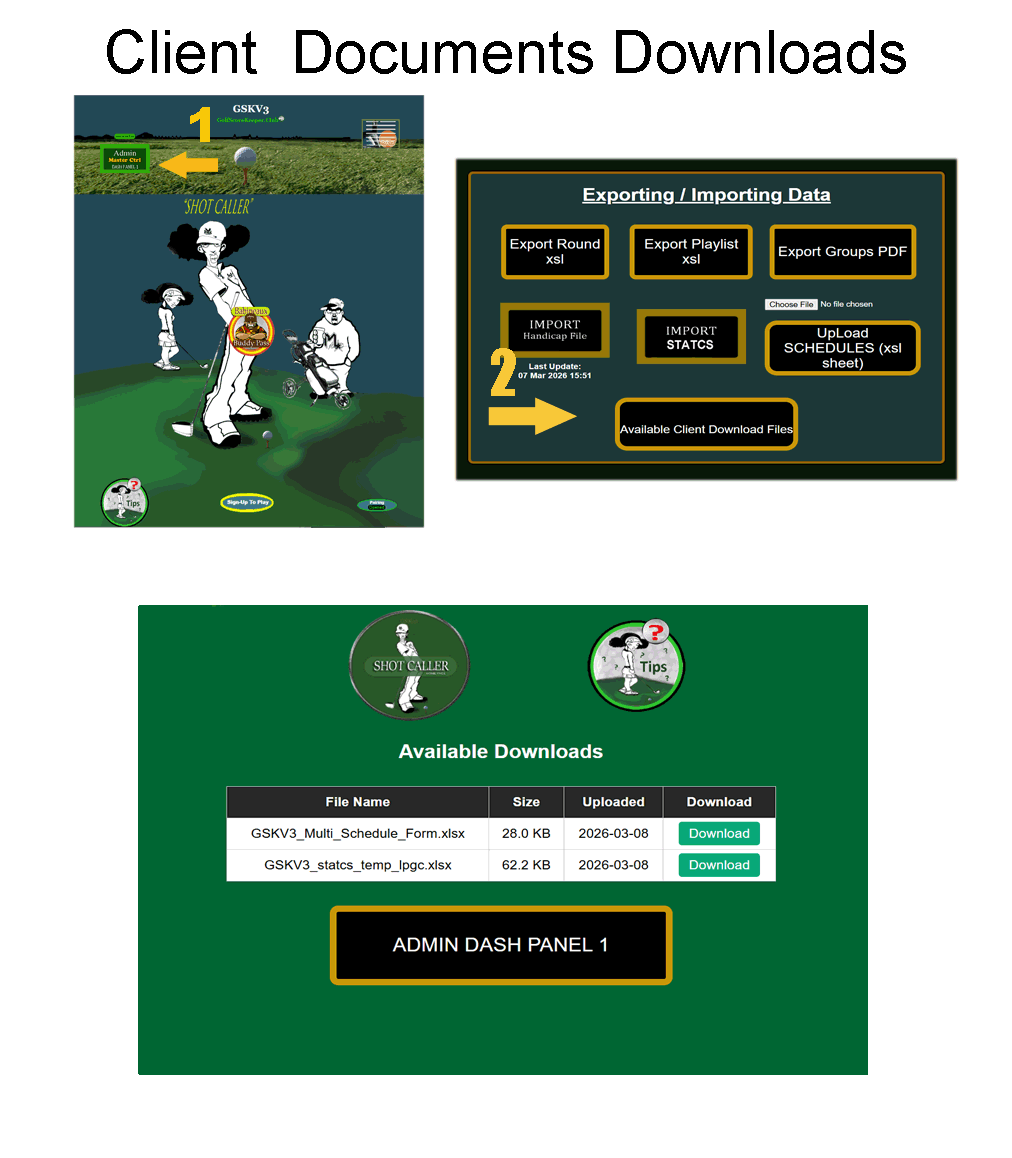
👉 Click Download next to any file to open or save the worksheet.
Note: Only files assigned to your organization are shown here. If you do not see a worksheet you expect, please contact your league administrator.
This page allows you to add, edit, clone, or import golf courses into the system. Each new course must be assigned to a Client (organization) in order for player handicaps, net scoring, skins, and statistics calculations to function. Use the forms below to manage course information, including par and handicap values for each hole.
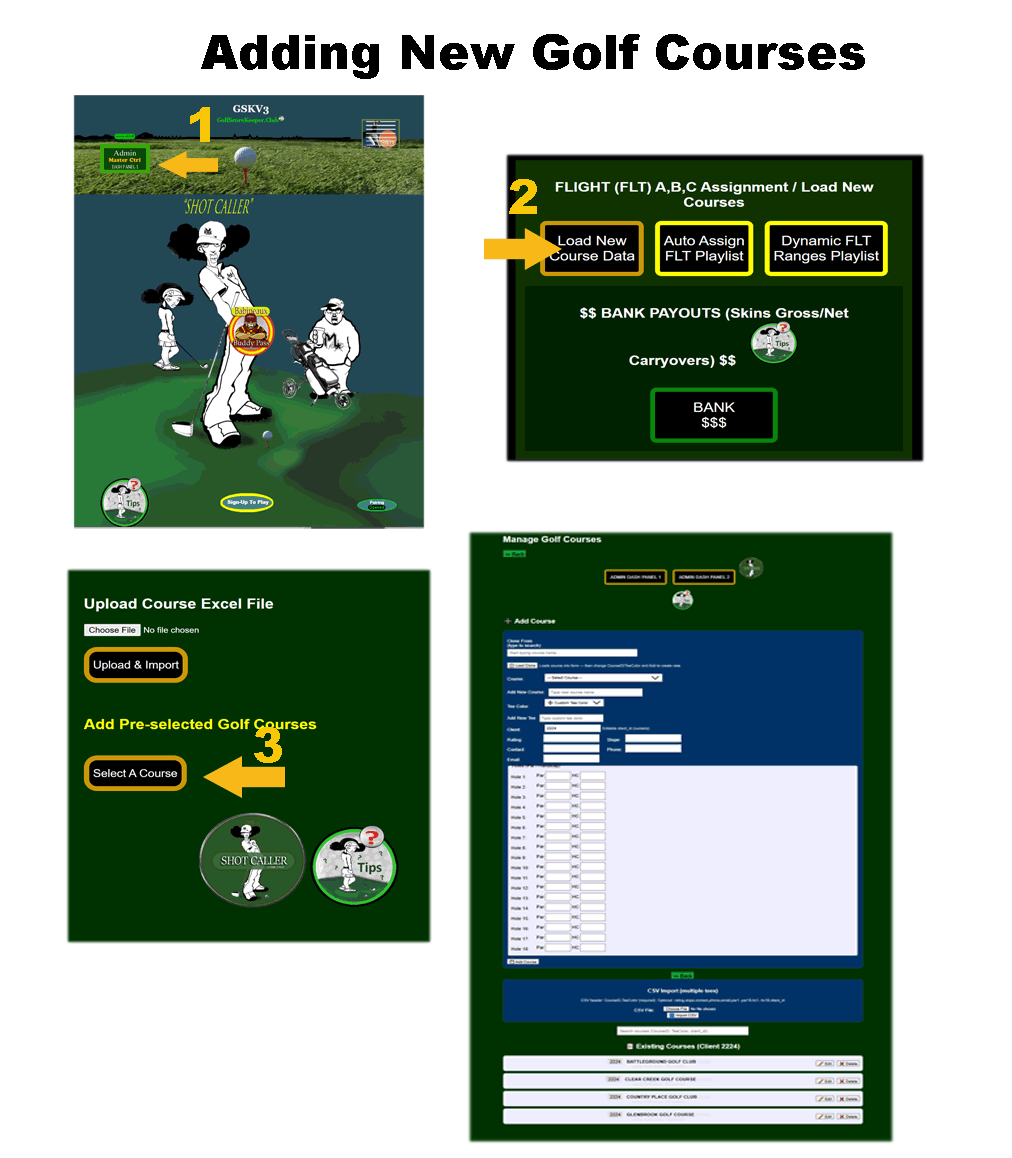
CourseID:
Select an existing course by typing the first letter of the course name to filter
the drop down list of preset courses. Selecting Custom will allow you to
enter a new course name.
Tee Color:
Select an existing tee color or type a new one. This allows multiple tee setups
for the same course to be distinguished.
Client ID:
Each course is associated with a client. The default value is your current
client session, but it can be edited if needed.
Rating & Slope:
Enter the official course rating and slope for the selected tee.
Contact Info:
Optional fields for a contact name, phone number, and email address.
Holes:
Enter par and handicap (HC) values for each hole from 1 through 18.
Add / Update:
Click Add Course to insert a new course, or Update Course to save
changes to an existing course.
Clone From:
Pre fill the form using an existing course and tee setup. Change the CourseID
and/or Tee Color, then click Add Course to create a new copy.
CSV Import:
Upload a CSV file to import multiple courses and tee setups at once.
Minimum required columns are CourseID and Tee Color.
Optional columns include rating, slope, contact name, phone, email,
par1–par18, hc1–hc18, and client_id.
Edit / Delete:
Use the buttons in the Existing Courses list to modify or remove courses.
Make sure all required fields are completed. After adding or updating a course, the Existing Courses list will refresh automatically.
These tools are restricted to Admin and Super Admin users only.
All actions are logged to the master log per client.
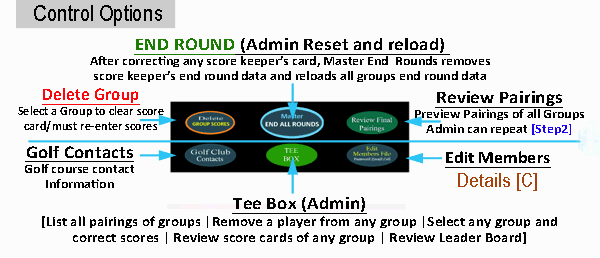
Use this section to manage group scorecards during the round that were previously submitted(END ROUND).
Deletes all "End Round" scores for the selected scheduled event (soft delete, files are not deleted from database).
⚠ Scores must be re-entered and saved again using the "Master End Round" button.
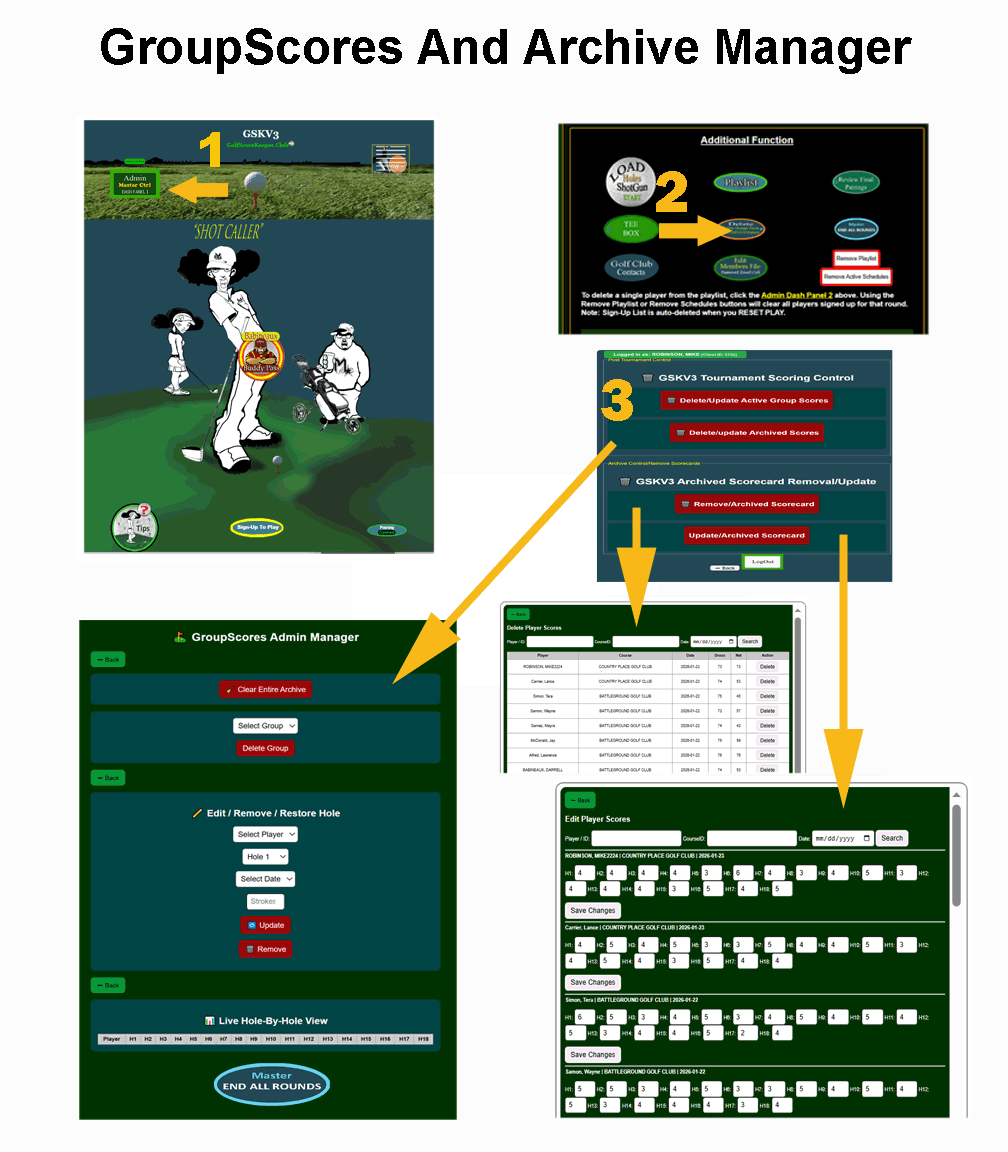
Removes all players and hole data for a selected group (soft delete, files are not deleted from database).
Use this if a group was entered incorrectly.
Removes all archived hole scores for a single player within a group (soft delete, files are not deleted from database).
Other players are not affected.
ℹ A value of 0 is not valid in golf. Removed holes display as –.
Required selections:
• Player
• Hole (1–18)
• Date
Updates automatically after every change.
Only active (non-deleted) scores are displayed.
After Updating or Editing groups and scores, you must re-submit by clicking "MASTER END ALL ROUNDS". This reloads all data to archive for player stats.
⚠ IMPORTANT: After reset of the scheduled event, update and Edit of groups and scores are not possible.
This tool allows admin to locate and delete individual archived scorecards.
Use one or more filters to locate records:
Deletes the selected scorecard record (soft delete, files are not deleted from database).
⚠ You will be prompted with a confirmation message.
This action cannot be undone.
This page displays all scheduled golf events for your organization and controls player sign-ups. Admin may also switch into player view when they need to play or record scores.
When logged in as an administrator, a banner appears at the top of the page. This confirms that you are in Admin View.
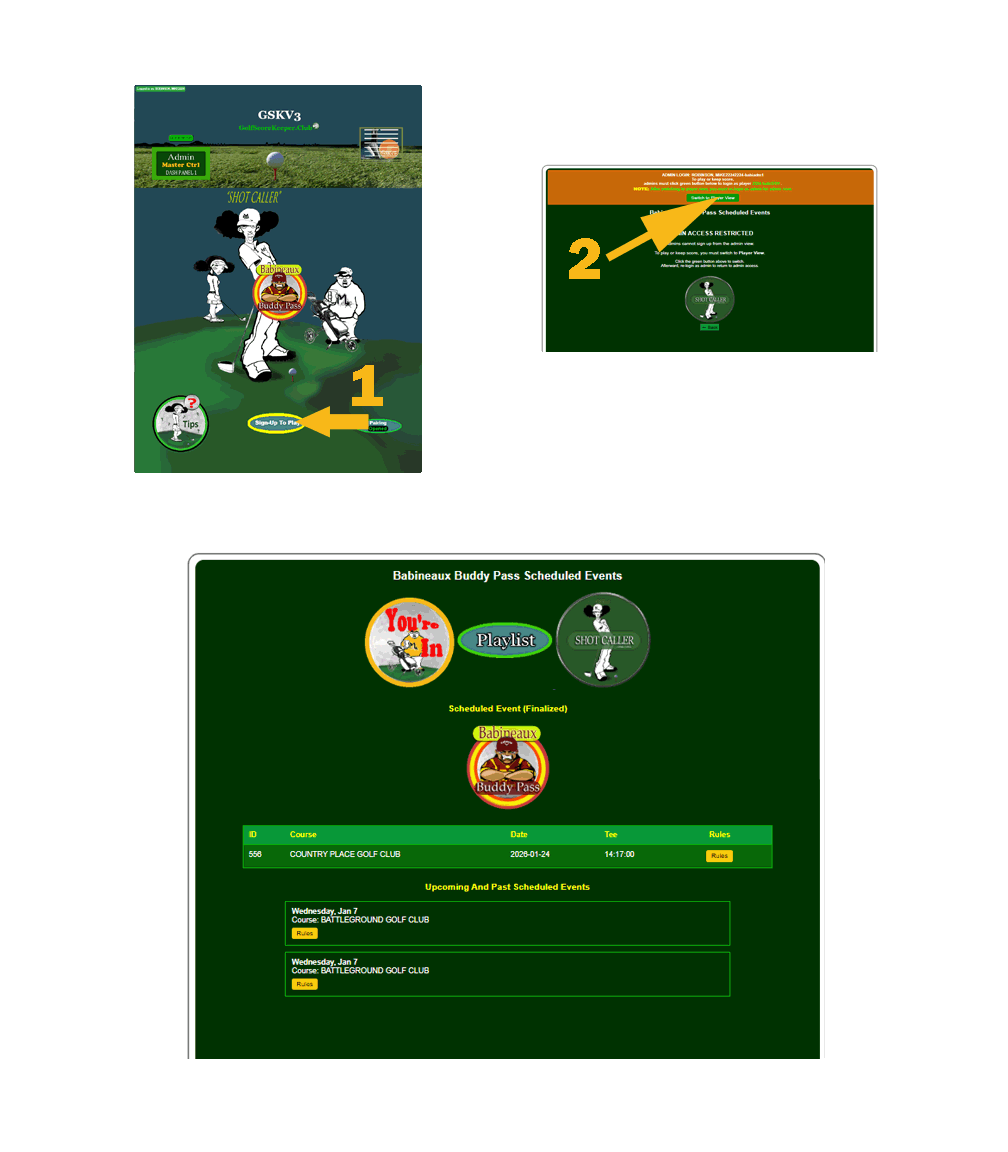
Click the green “Switch to Player View” button to temporarily log in as your linked player.
NOTE: After switching to player view, you must log out and log back in as admin to regain admin access.
Admin accounts ending in adm1 are restricted from signing up and must switch to player view.
This section shows finalized events from the Setup table.
This section lists all uploaded schedule events for reference. These entries may include upcoming or historical events.
The Admin Player Stats page allows administrators to view detailed golf statistics for all players in your organization. You can see single-player stats, multi-player summaries, handicaps, scoring breakdowns, and winnings.
Only users with the roles admin or admsuper can access this page. Attempting to access without proper permissions will display an Access Denied message.

Shows total rounds, courses, gross/net, handicap, best/worst per player.
Each flight (A, B, C) is assigned a handicap range. Admin can adjust the ranges using the inputs above.
⚠️ Warning: If the ranges overlap (for example, A max ≥ B min), a warning message will appear. Adjust the ranges to eliminate overlaps.
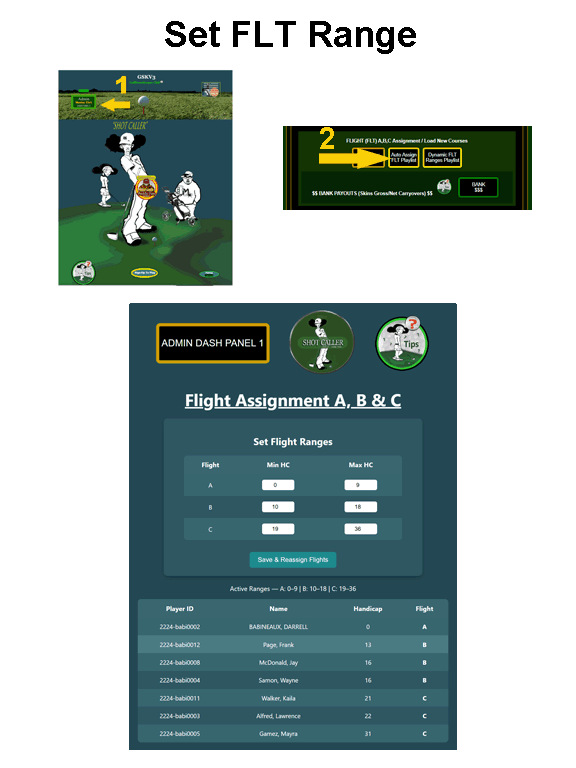
The table shows:
This screen automatically builds fair golf groups by combining handicap-based flights with balanced group assignment. The goal is competitive, playable groups — without manual math.
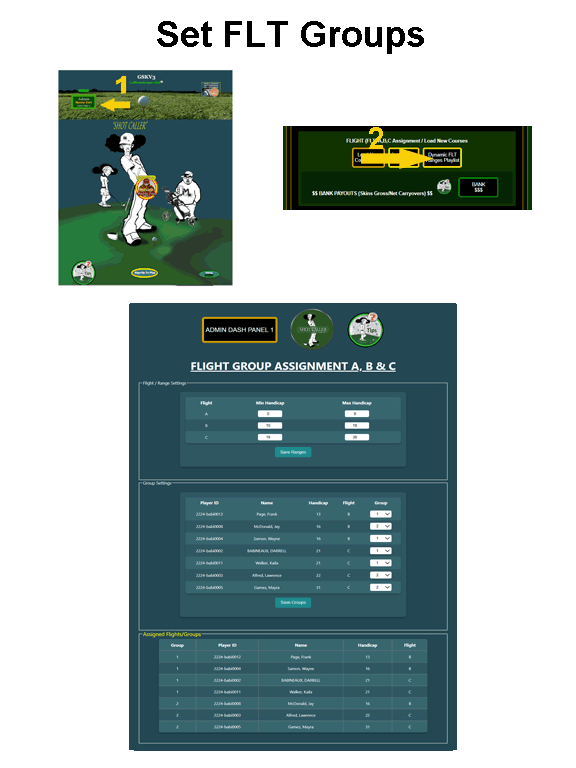
Flights are assigned strictly by handicap range:
You may change the handicap ranges at any time. Flight assignments update automatically.
When no Flight A players exist:
This prevents weak or overloaded groups.
Manual selection overrides balance rules — use sparingly.
Rerunning grouping is safe and will always re balance fairly.
This guide explains how the Master Reset and Restore from Backup features work, and how to use them safely.
Playlist_bkupbackup_at)backup_by)GroupScoresadvance_signupPlayerInfo (Assigned Client Courses) Note: Only Restored by SuperUser "admsuper". Restore found in Quick Ref -->Master ACCESS --> Master Disaster Recovery --> Link Disaster Recovery.
If something goes wrong, you can instantly revert the playlist using the Restore From Backup button.
Playlist_bkup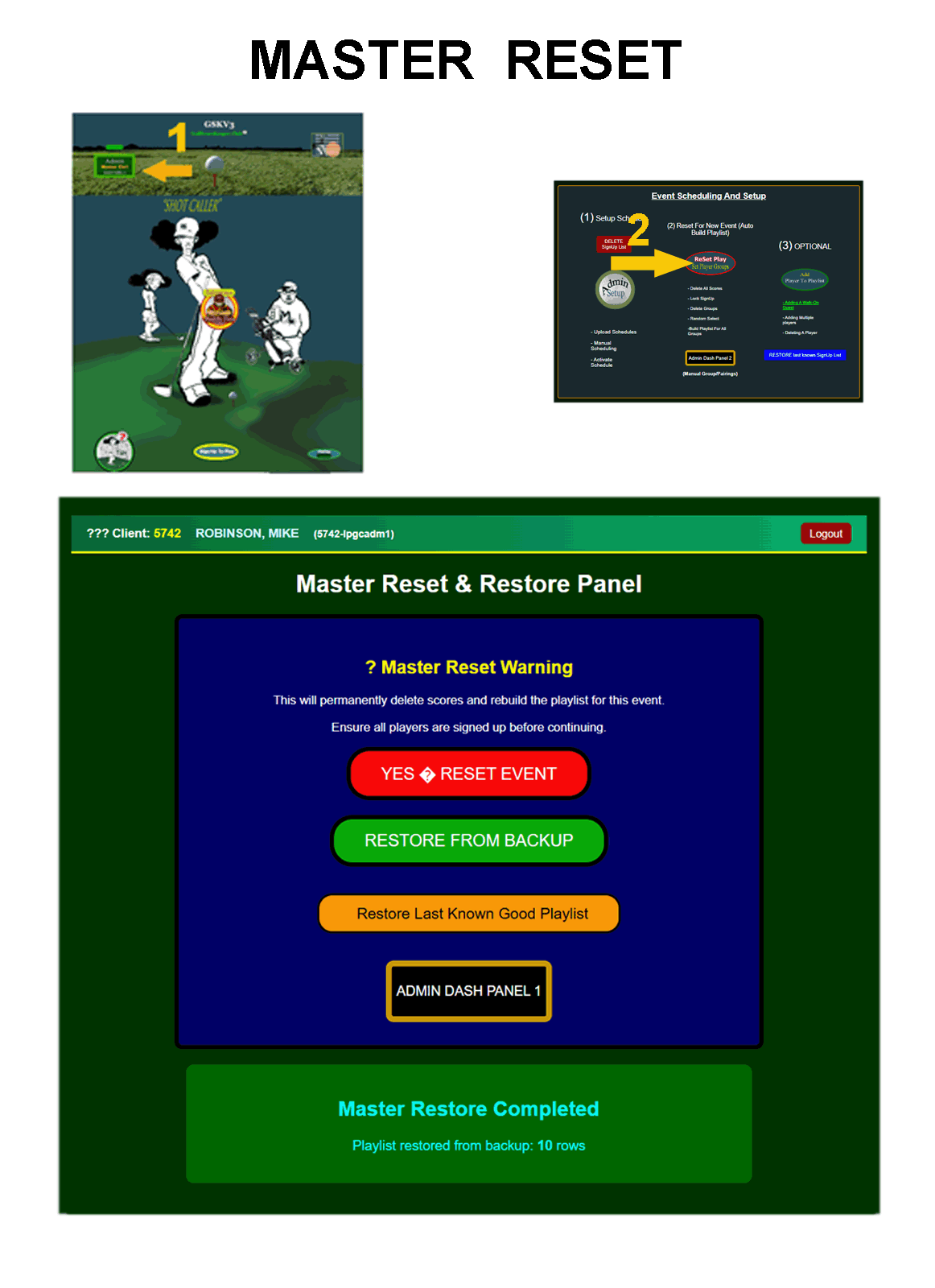 ✅ One-click restore. No fear. No guessing.
This page uses a POST → redirect → message display pattern. If redirected too early, messages may not render until reload.
Yes. Every reset automatically creates a backup before any deletes occur.
The restore button restores the most recent backup for the selected schedule.
| Playlist | Backed up, deleted, rebuilt |
| Scores | Deleted |
| Groups | Randomized |
| Flights | Auto-assigned |
| All Tables | Disaster Recovery |
| Security | Admin-only |
✔ Use carefully — this is the most powerful event-level reset in the system.
This page is restricted to Super Administrators only. All actions are logged and audited. Unauthorized access is blocked.
This tool protects your organization against accidental data loss by creating a complete snapshot of critical league data.
Each backup is tagged with a timestamp and administrator ID for full trace ability.
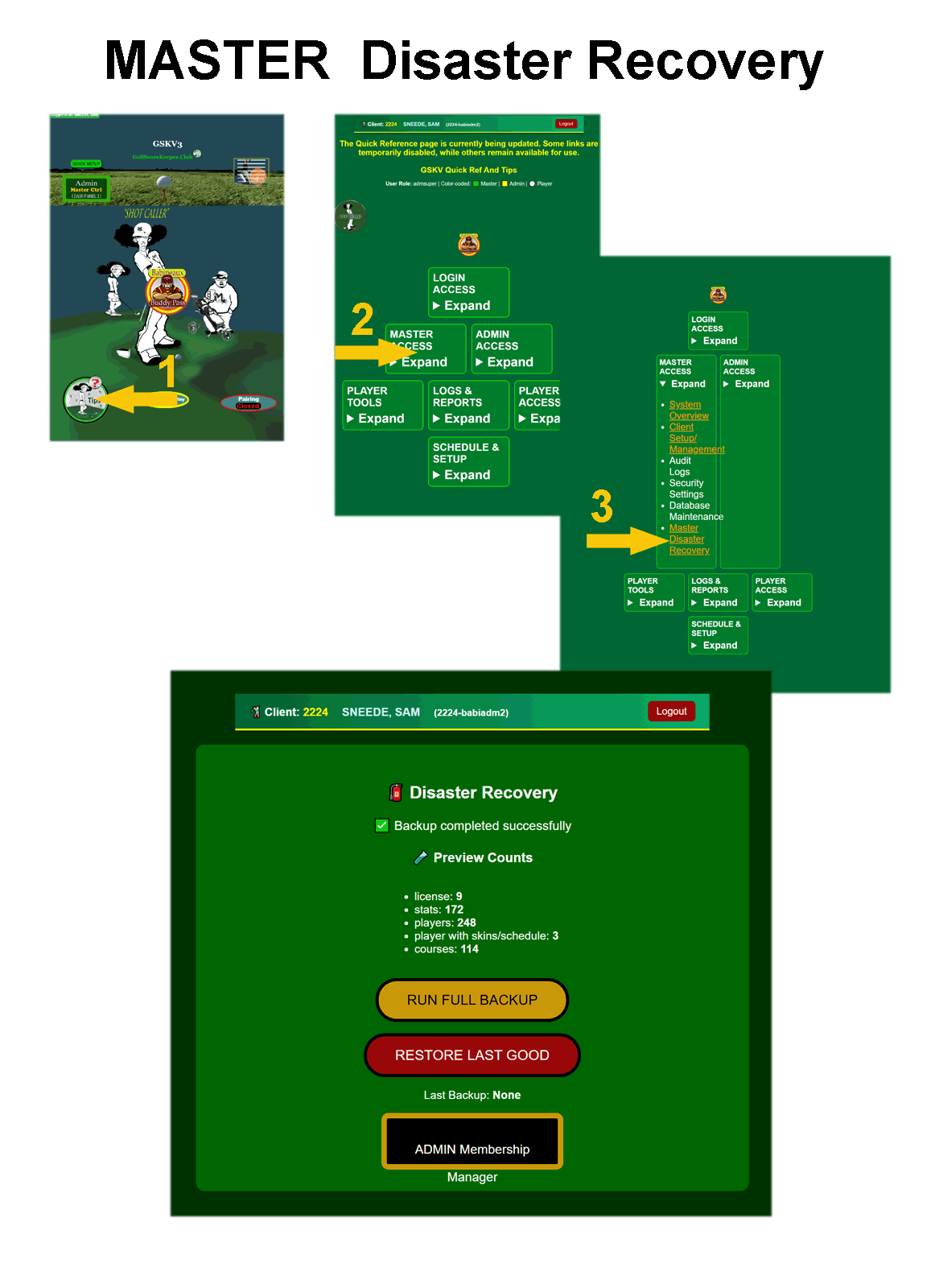
Before a backup is committed, the system displays a row count preview. This allows you to verify the scope of data being captured.
When you initiate a backup:
✔ This guarantees consistency across all tables.
This action restores the most recent successful backup. It should only be used when:
⚠ WARNING: Restore operations overwrite live data. This action cannot be undone.
Every backup and restore is recorded with:
This ensures full accountability and compliance.
Older backups may be automatically expired based on system policy. Always verify that a valid backup exists before performing destructive actions.
This system is designed for safety, trace ability, and recovery.
When in doubt — back it up first.
The Admin Audit Log records all significant administrative and system actions performed within the application.
This tool is designed for administrators and super administrators to monitor system activity.Tracked actions include:
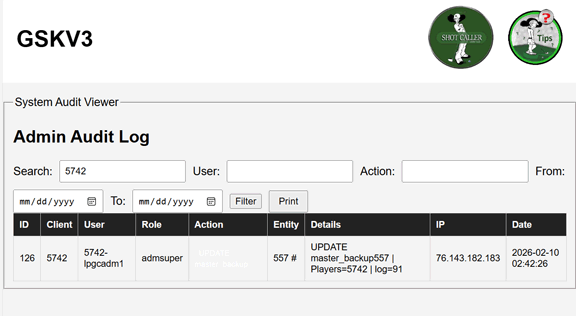
You can narrow results using the filter fields:
Filters can be combined. Example: Filter by user AND date range.
Click the Print button to generate a printer-friendly version of the results.
Only the currently filtered results will print.


| Org- Code | Event Date | Round Name |
|---|---|---|
| lpgc | 2026-02-16 | lpgc-2026021601R1 |
When starting a new tournament, you must reset events by clicking "Clear Schedule".
Clear Schedule removes:
 , and to unlock, goto
 and click

Note: START PLAY will reset your player/group combinations.

After you completed the schedule setup, unlock the tee-box for the players to enter logic that allow last minute player changes.
Match names are automatically generated using your organization code and event date.
Round naming is your choice, but we advise you to use a standard format such as :
| Org- Code | Event Date | Round Name |
|---|---|---|
| lpgc | 2026-02-16 | lpgc-2026021601R1 |
| boh | 2026-03-01 | boh-2026R3 |
Example: Your Club Organization's Org-Code with the date and the letter R (round) with a sequence number at the end(lpgc-2026021601R. This format ensures no round number is duplicated.
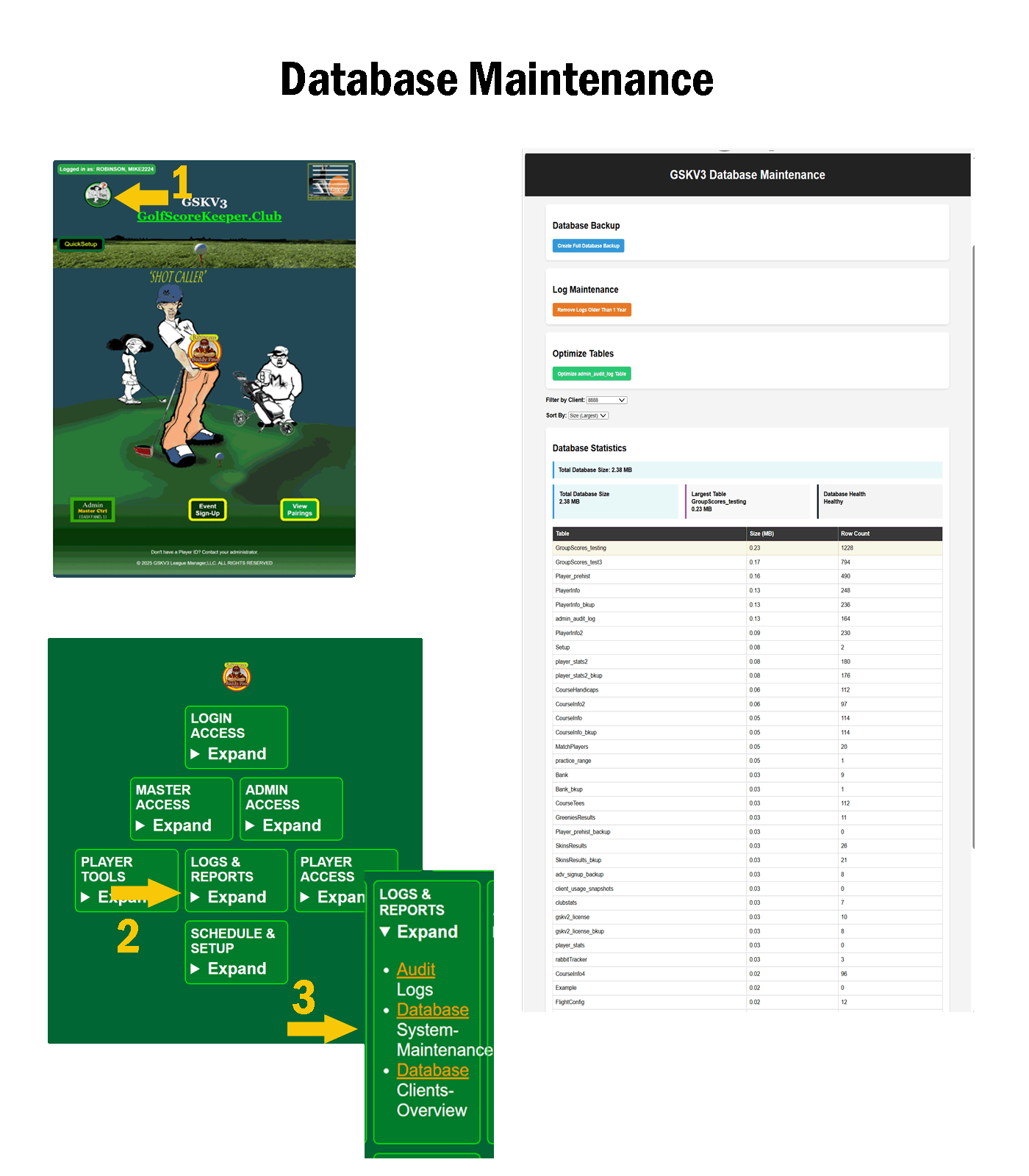
Access denied.The Create Full Database Backup button performs a complete MySQL database export.
The system usesmysqldump to generate a full SQL backup file.
/backups/ directory.gskv3_backup_YYYY-MM-DD_HH-MM-SS.sqlThe Remove Logs Older Than 1 Year button cleans the admin_audit_log table.
The Optimize admin_audit_log Table button runs:
OPTIMIZE TABLE admin_audit_log
The Filter by Client dropdown:
The Sort By dropdown allows you to sort tables by:
GSKV uses secure authentication protocols to verify every user before access is granted. This ensures that only authorized players, administrators, and master users can enter the system.
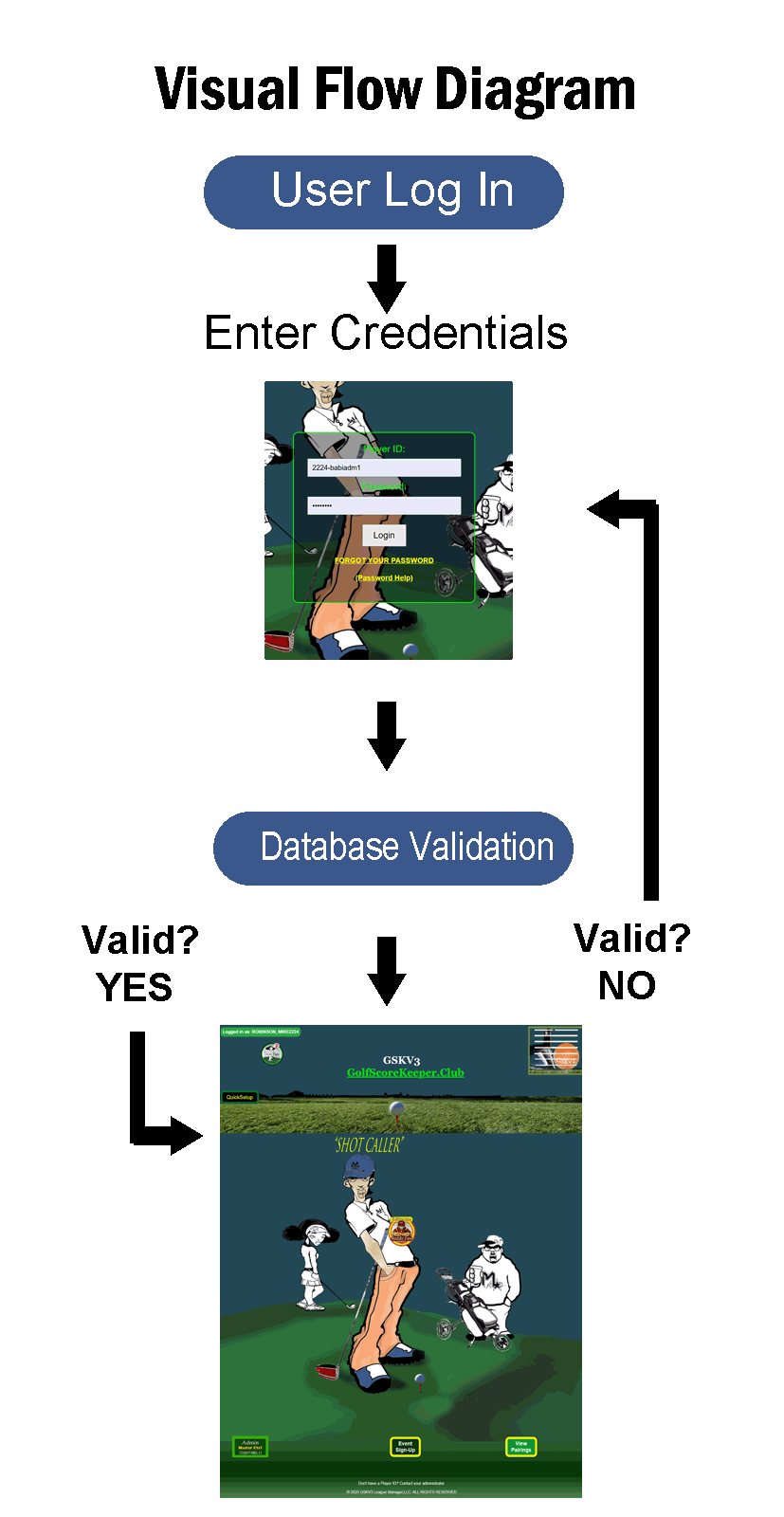
GSKV authentication ensures a secure starting point before any tournament, scheduling, or scoring activity begins.
After successful login, GSKV maintains a secure session to validate user identity as you navigate through dashboards, reports, and scheduling tools.
[ Page Request ]
        ↓
Check Session
        ↓
 ┌───────────────┐
 │ Session Valid?│
 └──────┬────────┘
        │
   YES  │  NO
        │
Display │ Redirect to
Page    │ Login Screen
Session validation ensures your GSKV experience remains secure while allowing seamless navigation across tools and reports.
GSKV automatically adjusts dashboard access based on your assigned role. This ensures each user sees only the tools appropriate to their level of responsibility.
Login Success
      ↓
Check Role Tables
      ↓
Assign Role
      ↓
 ┌──────────────────────┐
 │ Master | Admin | Player │
 └──────────┬───────────┘
            ↓
Load Role-Specific Dashboard
            ↓
Enable Allowed Features Only
Role-based redirection protects system integrity while keeping the interface clean, focused, and aligned with your responsibilities within GSKV.
Q: I forgot my password.
A: Use the password reset link or contact your admin to reset it (text 832.938. 2347. Include Player ID and Golf Organization).
Q: I can't see my group.
A: Make sure you're signed up for the current event and assigned to a group.